
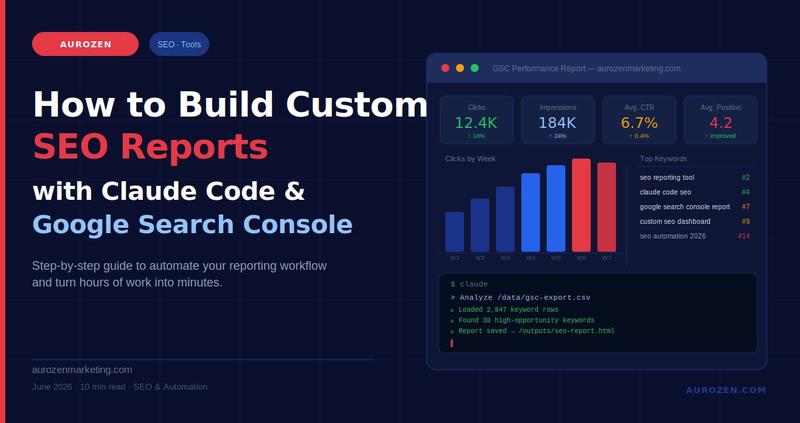
How to Use Claude Code for SEO Reporting: Google Search Console Guide (2026)
Monday morning. You have a client call at 10 AM. Your reporting dashboard is stale, your CSV files are buried in three different folders, and you still need to pull impressions, clicks, and average position from Google Search Console before anyone walks into that meeting room.
Creating SEO reports manually can consume hours every month. Most SEO professionals export Google Search Console data, clean spreadsheets, build charts in Looker Studio, and write summaries by hand before every client meeting.
Claude Code changes this entire workflow. By combining AI with Google Search Console data, marketers and agencies can automate SEO reporting, uncover ranking opportunities, identify low CTR pages, and generate presentation-ready reports in minutes instead of hours.
In this guide, you’ll learn how to use Claude Code for SEO reporting, connect Google Search Console data, automate report generation, and build a scalable reporting workflow for your agency or business.
What Is Claude Code And Why Does It Matter for SEO?
Claude Code is not your typical browser-based chat tool. While the standard interface at Claude.ai works like a conversational assistant, Claude Code runs directly in your computer’s terminal. It reads files, writes scripts, processes spreadsheets, and interacts with APIs , all through natural language instructions.
For SEO professionals, this changes everything. Instead of manually formatting a Google Search Console export in a spreadsheet, you can point Claude Code at the file and say: “Analyze this data. Pull the top 20 keywords by impressions. Show me which ones have a click-through rate below 2%. Format the output as a presentation-ready HTML report.”
And it does it. In minutes.
| Traditional SEO Reporting | Claude Code SEO Reporting |
|---|---|
| Export CSV manually | Live API connection or CSV upload |
| Clean spreadsheets manually | Processes data instantly |
| Build charts manually | Generates charts automatically |
| Template-based reports | Fully customizable reports |
| Repeat setup every month | Uses saved context files |
Benefits of Using Claude Code for SEO Reporting
Claude Code dramatically reduces the amount of time required to build SEO reports. Tasks that previously required exporting spreadsheets, cleaning data, creating charts, and writing summaries manually can now be completed in minutes.
For agencies managing multiple client accounts, Claude Code makes SEO reporting automation possible. Teams can identify keyword opportunities, analyze low click-through rates, compare performance periods, and generate customized client reports without repeating the same manual tasks every month.
Another major advantage is flexibility. Unlike traditional reporting tools, Claude Code can analyze Google Search Console exports, GA4 data, technical SEO crawl files, and content performance reports simultaneously. This allows SEO professionals to uncover insights that are often missed during manual analysis.
As agencies scale, automated SEO reporting becomes a significant competitive advantage because more time can be spent on strategy and optimization instead of repetitive reporting work.
Common SEO Reporting Tasks You Can Automate With Claude Code
- Keyword opportunity analysis
- CTR optimization reports
- Monthly SEO reports
- Competitor reporting
- Ranking change reports
- Technical SEO summaries
- GA4 and GSC combined reporting
What You Need Before You Start
Before diving into the setup, gather these tools and accounts. None of them requires a developer background; you just need to move through each one methodically.
- A Google Search Console account with at least one verified property
- Node.js installed on your computer (Claude Code requires it to run)
- An Anthropic account with an active API key from
console.anthropic.com - Terminal access (Mac: Terminal app, Windows: Command Prompt or PowerShell)
- Basic comfort with file paths, no coding required, just knowing where your files live
💡 Quick tip: The initial setup is the steepest part of the learning curve. Once it’s done, you won’t have to repeat most of these steps. Think of it as a one-time investment that pays off in hours saved every single week.
Step 1: Install Claude Code on Your Machine
Open your terminal and run the following command to install Claude Code globally using npm:
npm install -g @anthropic-ai/claude-code
Once the installation finishes, authenticate with your Anthropic account by running:
claude
The command-line interface will walk you through connecting to your Anthropic account. After that, Claude Code is ready to start working with your local project files, spreadsheets, and SEO data.
Set Up Your Project Folder
Create a dedicated folder on your desktop or in your documents labeled something like seo-reports. Inside it, create two subfolders: /data for raw GSC exports and /outputs for finished reports. This keeps your workflow clean and easy to repeat.
Step 2: Export Your Google Search Console Data
Log in to Google Search Console and select your property. Navigate to Performance → Search Results. From there, set your date range — typically the last 28 days or the last 3 months, depending on the report you want to build.
Click Export in the top-right corner, then choose Download CSV. Save this file inside the /data folder you just created. That’s it for the manual export step.
Your CSV will contain columns for:
- Queries — the search terms people used to find your site
- Clicks — how many times users clicked through to your page
- Impressions — how many times your pages appeared in search results
- CTR (Click-Through Rate) — the percentage of impressions that turned into clicks
- Average Position — your average ranking in search results
Pro tip: Export data filtered by page and by query. When you have both, Claude Code can cross-reference which pages are ranking for which keywords and surface opportunities that a surface-level export would miss entirely.
Step 3: Feed Your Data to Claude Code
Open your terminal and navigate to your project folder:
cd ~/Desktop/seo-reports
Launch Claude Code:
claude
Now tell Claude Code what you want to do. Write your instructions the same way you would explain a task to a smart colleague. Here is an example prompt that delivers powerful results:
"I have a CSV file in /data/gsc-export.csv from Google Search Console.
Analyze the data and do the following:
1. List the top 20 keywords by impressions
2. Flag any keyword with a CTR below 2% and average position between 1 and 10
3. Identify the 5 pages with the highest impressions but lowest CTR
4. Build a clean HTML report in /outputs/seo-report.html with all findings and a summary of recommended next steps"
Claude Code reads the file, processes the data, identifies patterns, writes the analysis, and generates a styled HTML report all from that single set of instructions.
How We Use Claude Code for SEO Reporting at Aurozen
At Aurozen Marketing, we use Claude Code to streamline SEO reporting across multiple client accounts. Before implementing this workflow, creating monthly reports often required several hours of exporting data, cleaning spreadsheets, building charts, and preparing client presentations.
Today, much of this process is automated. Claude Code helps our team quickly identify high-impression keywords with low click-through rates, uncover pages losing rankings, and generate presentation-ready reports significantly faster.
This approach allows us to spend less time building reports and more time focusing on SEO strategy, optimization opportunities, and client growth.
Step 4: Create a Context File So Claude Remembers Your Site
One of the smartest things you can do is create a claude.md file inside your project folder. Claude Code reads this file automatically at the start of every session. It acts as a permanent briefing document — so you never have to re-explain your website, goals, or clients.
A good claude.md The file for an SEO reporting workflow looks like this:
## Site Context
Website: https://aurozenmarketing.com
Industry: Digital Marketing & SEO Agency
Primary goals: Lead generation, SEO visibility, organic traffic growth

## Reporting Goals
- Track keyword ranking improvements month over month
- Identify low CTR, high impression pages for optimization
- Monitor top landing pages by organic clicks
- Flag pages that dropped in average position by more than 3 spots

## Output Preferences
- Reports should be in clean HTML format with a summary at the top
- Use red to flag issues, green to highlight wins, yellow for opportunities
- Always include a recommended next steps section
With this file in place, every report you generate automatically includes your site context. You do not need to repeat yourself. You just ask for the report, and Claude Code builds it with the full picture already loaded.
Step 5: Connect to Live Google Search Console Data via API
CSV exports are great for getting started. But if you want reports that refresh on demand or if you manage multiple client accounts, connecting Claude Code directly to the Google Search Console API is the smarter long-term move.
Here is how to set up a live data connection:
1. Create a Google Cloud Project
Go to console.cloud.google.com and create a new project. Name it something like seo-reporting. Inside the project, navigate to APIs & Services and enable the Google Search Console API.
2. Generate a Service Account
Under APIs & Services → Credentials, click Create Credentials and select Service Account. Give it a name and download the JSON key file. Save this file inside your project folder as credentials.json.
3. Add the Service Account to Your Search Console Property
Copy the service account email address from your Google Cloud console. Then go to Google Search Console, open your property settings, click Users and permissions, and add that email as a Full user.
4. Tell Claude Code to Use the Credentials
With the credentials file in your project folder, you can now tell Claude Code to connect to the live GSC API and pull data directly. No more manual exports.
"Use the credentials in /credentials.json to connect to Google Search Console API for the property https://aurozenmarketing.com. Pull the last 90 days of performance data and build a full SEO ranking report."
Custom SEO Reports with Claude Code and Google Search Console
Once your environment is set up, the range of reports you can produce is limited only by what questions you want answered. Here are some of the most valuable custom report types marketers are building right now:
Monthly Performance Overview Report
A top-level summary covering total clicks, impressions, CTR, and average position compared to the previous month. Ideal for client updates and internal reviews. Claude Code can build this with charts and a plain-English summary in under two minutes.
Keyword Opportunity Report
This report identifies keywords where your pages rank between positions 5 and 15, close to the top but not quite there. These are your highest-value optimization targets. A small improvement in content or on-page SEO for these keywords can drive a significant lift in clicks.
CTR Drop Report
Some pages rank well but fail to earn clicks. This report flags pages with high impressions but below-average CTR, signaling that the title tag or meta description needs a rewrite. Claude Code can analyze every page in your export and rank them by CTR underperformance.
Page-Level Comparison Report
Run the same report two weeks apart and ask Claude Code to compare the two datasets. It will tell you which pages gained rankings, which dropped, which earned more clicks, and which need attention, all formatted as a clean, shareable report.
Branded vs. Non-Branded Keyword Split
Separate branded search terms (like your company name) from non-branded organic traffic. This gives you a clearer picture of how well your content strategy is performing in searches where users do not yet know your brand exists.
Why This Changes Everything for Digital Marketing Agencies
For agencies managing multiple client accounts, the traditional reporting model does not scale well. Every client wants a custom report. Every client has a different set of goals and priority metrics. Building those reports manually is one of the biggest hidden costs in agency operations.
Claude Code solves this by turning your reporting workflow into a repeatable system. You build the context file once per client. You run the report on demand. The output is clean, branded, and customized every time without rebuilding it from scratch.
Beyond speed, the quality of insight improves. Because Claude Code can cross-reference multiple data sources at once, GSC performance data, GA4 session quality, page-level content, and technical crawl results, the reports surface patterns that a manual process would easily miss.
The agencies that adopt this workflow now are building a meaningful competitive advantage. Reporting that used to require a half-day of analyst time can be completed in 15 minutes. That time goes back into strategy, client communication, and actual execution.
Want Your SEO Reporting Done for You?
At Aurozen, we build and manage performance-driven SEO systems for growth-focused brands. From custom reporting to full-funnel optimization, we handle the complexity so you can focus on scaling. Book a Free Strategy Call →
Claude Code vs Looker Studio vs ChatGPT for SEO Reporting
| Feature | Claude Code | Looker Studio | ChatGPT |
|---|---|---|---|
| Google Search Console Integration | Yes | Yes | No |
| Automated SEO Reporting | Yes | Limited | No |
| Local File Access | Yes | No | No |
| Technical SEO Analysis | Yes | No | Limited |
| Custom HTML Reports | Yes | Limited | No |
| Natural Language Commands | Yes | No | Yes |
Frequently Asked Questions
Do I need coding experience to use Claude Code for SEO reports?
No. Claude Code uses natural language instructions, which means you can simply describe what you want in plain English. For example, you can ask Claude Code to analyze Google Search Console data, identify low CTR keywords, or generate an HTML SEO report without writing code. Basic familiarity with using the terminal and navigating folders on your computer is helpful, but advanced programming knowledge is not required.
Is Claude Code different from Claude on the website?
Yes. The standard Claude interface available on the website functions primarily as a conversational AI assistant. Claude Code, on the other hand, runs directly inside your terminal and can access local files, write scripts, analyze datasets, and automate workflows. This makes Claude Code especially useful for SEO reporting automation and large-scale data analysis.
How long does the initial setup take?
Most users can complete the initial setup within two to four hours. This includes installing Claude Code, creating an Anthropic API key, setting up Google Search Console access, and configuring the Google Search Console API if you want live data connections. Once configured, generating future SEO reports usually takes only a few minutes.
Can I manage multiple client properties?
Absolutely. Agencies can create separate project folders and context files for each client. Each project can have its own Google Search Console property, reporting preferences, and API credentials. This allows agencies to automate SEO reporting for multiple clients while keeping data organized and customized.
What data can Claude Code access from Google Search Console?
Through Google Search Console exports or the Search Console API, Claude Code can analyze clicks, impressions, average position, click-through rate (CTR), keyword-level performance, page-level performance, device data, country data, and historical comparisons. It can also combine this information with Google Analytics 4 exports for deeper SEO analysis.
Is Claude Code free?
Claude Code itself requires access through Anthropic and typically uses API credits for processing requests. Although installing Claude Code is free, ongoing usage costs will vary based on the number of API requests and the amount of data processed. Therefore, users should review Anthropic’s pricing structure to estimate their expected monthly expenses. Users should review Anthropic pricing to estimate their expected monthly costs.
Can Claude Code connect with Google Analytics 4?
Yes. Claude Code can analyze exported Google Analytics 4 datasets and, with proper configuration, work alongside GA4 APIs. Combining Google Analytics 4 data with Google Search Console data provides deeper insights into organic traffic quality, user behavior, conversions, and content performance.
Is Claude Code safe for client SEO data?
When implementing proper security measures, Claude Code is safe to use for client SEO Reporting. For instance, API agencies need to secure API credentials, restrict access to critical documents by users, maintain client information safely, comply with the client’s privacy policies, etc. Furthermore, agencies must periodically go through Anthropic’s latest security documentation before handling sensitive business data.In addition, teams should periodically review user permissions and remove unnecessary access whenever possible. As a result, agencies can reduce security risks and maintain stronger data protection standards. Ultimately, by following these best practices and staying updated with the latest guidance, agencies can confidently use Claude Code while protecting client data and maintaining client trust.
Final Thoughts
Custom SEO reporting used to mean hours of manual work before every client meeting. Google Search Console would export a CSV.You would clean the data in Excel. Next, you would build charts in Looker Studio. Finally, you would manually write the summary and hope nothing broke before the presentation loaded.
That workflow is no longer the only option. Claude Code brings a completely different model, one where your reporting system knows your site and goals, connects to live data, and generates publication-ready reports on demand. The setup takes a few hours the first time. The return is measured in hours every single week.
For SEO professionals who want to work smarter, for agencies that want to scale their reporting without scaling their headcount, and for marketers who are tired of spending Monday morning preparing slides instead of doing strategy, this is a practical, proven workflow worth building.
Start with a CSV export. Get familiar with Claude Code’s natural language interface. Build your first context file. Then connect the live API when you are ready. Each step compounds. Each report gets faster. The results speak for themselves.
Written by Aurozen Marketing Team
Aurozen is a performance-driven digital marketing agency helping brands scale through paid media, SEO, automation, and full-funnel strategy. We publish practical guides for marketers who want results, not just theory. Visit aurozenmarketing.com →